Wedding QR Code for Photos: Complete Implementation Guide 2025
Collecting wedding photos from guests used to mean weeks of follow-up texts, lost email threads, and that cousin who promised to "send them next week" six months ago. QR codes eliminated this entire headache—scanning once gives you instant access to hundreds of candid moments your photographer never saw.
This guide shows you exactly how to implement QR code photo sharing at your wedding, from generating codes to strategic placement, with templates and real wedding results included.
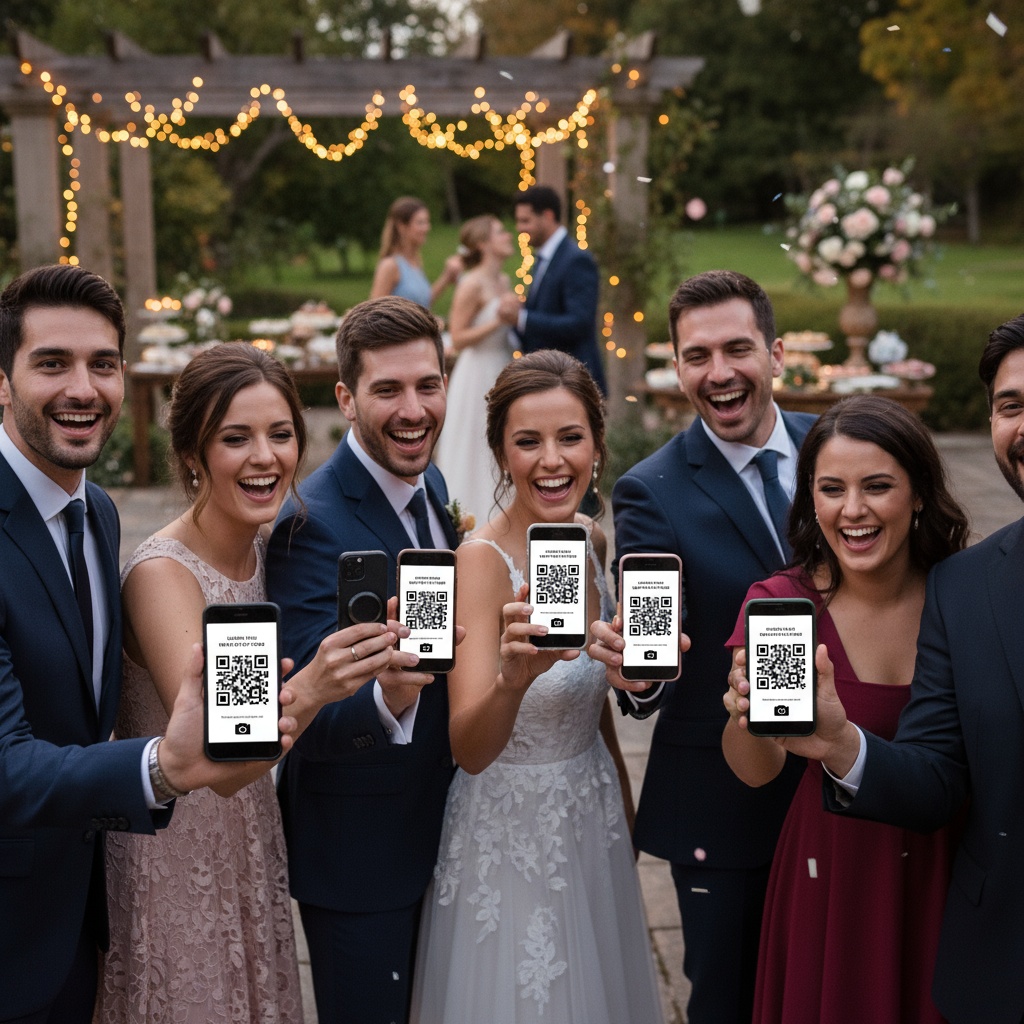
Why QR Codes Work for Wedding Photos
Traditional methods create friction:
Text/email requests: Manual effort for guests → 10-20% actually send photos Social media: Privacy concerns + compressed quality + tagging chaos Shared albums: Platform limitations (iPhone-only) + account requirements + confusing setup Google Drive: Requires sign-in + upload confusion + no curation
QR codes remove all friction:
- Guest points phone camera at code
- Notification appears ("Open website")
- Tap notification → upload page loads
- Select photos → tap upload → done
15 seconds total. No apps, no accounts, no confusion. This simplicity drives 75-85% participation vs 10-30% with traditional methods.
Setting Up Your Wedding QR Code System
Step 1: Choose Your Platform
Essential requirements:
- Browser-based upload (no app download required)
- QR code generation
- Works on iPhone and Android
- Unlimited photo storage
- Moderation capabilities (control what appears on screens)
- Photo downloads
Premium features worth considering:
- Live display for reception screens
- Custom branding (your wedding colors/names)
- Password protection
- Extended storage (1 year+)
- Multiple QR codes (track which locations generate most uploads)
Fotify provides all of these, with wedding-specific features like RSVP integration and digital guest books.
Step 2: Generate Your QR Code
Basic setup (5 minutes):
- Create account on wedding photo platform
- Enter wedding date and details
- Platform automatically generates unique QR code
- Download QR code file (PNG or SVG format)
Customization options:
- Add your initials or small icon in center
- Match wedding color scheme
- Include short URL as backup (for guests with older phones)
Technical specs:
- Minimum 2x2 inches for table cards
- 4x4 inches or larger for welcome signs
- High contrast (black on white scans best)
- Test with multiple phones before printing
Step 3: Design Your Signage
Welcome Table Sign (Priority #1)
Size: 8x10 inches minimum, 11x14 ideal Placement: Venue entrance where all guests pass Content:
Share Your Photos!

[Large QR Code]

1. Point camera at code
2. Tap notification
3. Upload photos

See them appear on the big screen!
Design tips:
- Keep instructions simple (3 steps maximum)
- Large QR code (guests scan from 3-4 feet away)
- Match wedding aesthetic (elegant frame for formal, rustic wood for barn wedding)
- Include WiFi password if helpful
Table Cards
Size: 2x2 to 4x4 inches Placement: One per table or every other table Content:
Capture the Moment

[QR Code]

Scan to share your photos
[Couple Names] • [Date]
Advantages:
- Guests see it during dinner (perfect timing—phones already out)
- Multiple touchpoints increase awareness
- Can double as table numbers or favors
Bar Area Sign
Why here: High-traffic location, guests linger, relaxed atmosphere perfect for scanning
Content:
While you wait...
Share your photos!

[QR Code]

Scan • Upload • Celebrate
Bathroom Mirror Decals
Unconventional but effective: Guests have phones in hand, downtime, often check appearance (perfect for selfie uploads)
Placement: One sticker per bathroom mirror Size: 3x3 inches
Photo Booth Area
Perfect synergy: Guests just took photos, QR code enables instant upload
Integrated sign:
Love this photo?
Share it instantly!

[QR Code]
Step 4: Multiple QR Code Strategy
Why multiple locations matter: A single sign at the entrance isn't enough. Guests arrive at different times, focus shifts throughout event, reminders increase participation.
Recommended placement (150-guest wedding):
- 1 large welcome sign (entrance)
- 8-10 table cards (at tables)
- 2 bar area signs (one per bar if multiple)
- 1 photo booth sign
- 2 bathroom mirror decals
Total: 12-15 QR codes (all linking to same gallery)
Live Display: The Participation Multiplier
Psychology: When guests see photos appearing on screens in real-time, participation skyrockets. "I want to see mine on the big screen!" is a powerful motivator.
Setup:
- Rent or use venue TV/projector
- Connect laptop or tablet
- Open gallery's display URL
- Choose display mode (carousel, grid, slideshow)
- Enable moderation (approve photos before they appear)
Display positioning:
- Visible but not distracting
- Near dance floor or cocktail area
- Multiple screens for large venues
Real results:
- Without live display: 40-50% participation
- With live display: 75-85% participation
- Nearly double the photos collected
Learn more about event wall displays.
Strategic Timing and Announcements
Ceremony:
- Officiant mentions at beginning or end
- "Scan the QR codes around the venue to share your photos!"
Cocktail Hour:
- First uploads appear on displays
- Early adopters demonstrate functionality
- Wedding party actively uploads to kickstart participation
Reception:
- DJ/MC announcement after first dance
- "Look around the room for QR codes—scan and share your photos to see them on the big screen!"
- Repeat 2-3 times throughout reception
Key moments:
- During dinner (guests have downtime)
- Between dances (phones are out)
- End of night reminder ("Last call for photo uploads!")
Content Moderation: Keeping It Wedding-Appropriate
Why essential: You love Uncle Bob, but his jokes don't belong on your reception screen.
Two-tier system:
1. AI filtering (automatic):
- Screens obvious inappropriate content
- Filters extreme close-ups or accidental shots
- Happens instantly upon upload
2. Manual approval (you control):
- Review photos before screen display
- Swipe right to approve, left to reject
- Takes 2-3 seconds per photo
- Can assign to trusted friend/coordinator
Guest experience: Their upload succeeds immediately (visible in private gallery), but you curate what appears publicly.
Best practice: Start with auto-approve mode (all photos show unless rejected), switch to manual approval if needed. Most weddings don't encounter issues.
Post-Wedding: Collection and Sharing
Immediate downloads (within 24 hours):
- Bulk download all photos
- All photos available for download
- Organized by upload time
- Separate folders for approved vs all uploads
Guest access:
- Share gallery link with all attendees
- Password protection optional
- Allow downloads
- Set expiration (30 days, 1 year, permanent)
Using your photos:
- Thank-you card selections
- Social media posts (with guest permission)
- Printed albums
- Anniversary reminiscing
- Sharing with family who couldn't attend
Storage recommendation: Download immediately and backup to cloud + external drive. Don't rely solely on platform storage.
Troubleshooting Common Issues
Problem: "QR code won't scan"
- Increase size (too small = scan failure)
- Improve lighting (shadows interfere)
- Check contrast (black on white works best)
- Test with multiple phone models before printing
Problem: "Low participation"
- Add more QR code locations
- Increase announcements (DJ/MC reminders)
- Show uploads on screen (demonstrates functionality)
- Wedding party uploads first (leads by example)
Problem: "Guests confused by process"
- Simplify instructions (3 steps maximum)
- Add visual examples on signage
- Assign tech-savvy friend to assist
- Include phone number for help
Problem: "Slow uploads/WiFi issues"
- Provide venue WiFi password on signs
- Platform should support cellular data backup
- Test internet during rehearsal
- Consider mobile hotspot as backup
QR Code Design Templates and Ideas
Formal/Elegant Weddings
- Gold foil QR code on cream card stock
- Ornate frame surrounding code
- Calligraphy instructions
- Matches invitation suite aesthetic
Rustic/Barn Weddings
- QR code on wooden sign
- Wildflowers or greenery decoration
- Hand-lettered instructions
- Burlap or kraft paper table cards
Modern/Minimalist
- Clean acrylic display with QR code
- Simple sans-serif typography
- Black and white only
- Geometric design elements
Beach/Tropical
- QR code incorporated into seashell display
- Watercolor background
- Sandy color palette
- Message in a bottle concept
Themed Weddings
- QR code integrated into theme (travel = passport design, vintage = old photograph style)
- Matches overall decor
- Fun copy matching theme tone
Comparison: QR Codes vs Other Wedding Photo Methods
| Method | Guest Participation | Setup Time | Real-Time Display | Platform Limits | Quality Control | Cost |
|---|---|---|---|---|---|---|
| QR Codes | 75-85% | 15 min | Yes | None | Yes (moderation) | $25-$75 |
| iPhone Shared Album | 20-30% | 30 min | No | iOS only | Limited | Free |
| Disposable Cameras | 100% (at tables) | High (procurement/developing) | No | Physical only | No | $300-$600 |
| Email Requests | 10-20% | Ongoing | No | None | Manual sorting | Free |
| Hashtag + Social | 40-50% | None | No (delayed) | Quality compressed | None | Free |
QR codes provide the best balance of participation, convenience, quality, and control.
FAQs About Wedding QR Codes for Photos
How do I create a QR code for my wedding photos?
Sign up for a wedding photo platform like Fotify, create your event with your wedding date, and the platform automatically generates a unique QR code. Download this code as a PNG or SVG file and print it on wedding signage. Guests scan it with their phone camera to access your upload page—no app required.
Do wedding guests need a special app to scan QR codes?
No. Modern iPhones (iOS 11+) and Android phones (Android 8+) scan QR codes using the built-in camera app. Guests simply open their camera, point at the QR code, and tap the notification that appears. This universal compatibility is why QR codes work so well for weddings with mixed device types.
What size should my wedding QR code be for easy scanning?
Minimum 2x2 inches for table cards where guests are close. 4x4 inches or larger for welcome signs where guests scan from 3-4 feet away. Test scanning from typical viewing distance before final printing. Too small = frustrated guests and lower participation.
Can I customize my wedding QR code to match our colors?
Yes, but maintain readability. Black QR code on white background scans most reliably. You can add a small logo/icon in the center (your initials, date, or wedding symbol), change the background color to match your palette, or add decorative borders—just ensure the QR code itself has high contrast for easy scanning.
How do I prevent inappropriate photos being shared at my wedding?
Enable moderation features: AI filtering automatically screens uploads, then you manually approve photos before they appear on public displays (reception screens). Guests see their photos in the private gallery immediately, but only approved images show on screens during your wedding. Assign a trusted friend as moderator if needed.
What happens if guests don't have internet at my venue?
Provide venue WiFi password on QR code signs. Choose a platform that supports cellular data uploads as backup. Test internet connectivity at your venue during rehearsal to identify any dead zones. If connectivity issues persist, guest photos queue and upload when connection improves (platform-dependent feature).
How long should I keep the wedding photo gallery accessible?
Most couples choose 30 days to 1 year for guest access, with personal downloads for permanent storage. Paid wedding plans typically offer extended or permanent access. Download all photos immediately after your wedding as backup—don't rely solely on platform storage. Consider reopening access for anniversaries.
Making Wedding Photo Collection Effortless
QR codes transformed wedding photo collection from a post-event chore into a real-time celebration element. No follow-up messages, no lost photos, no platform barriers—just simple scanning that captures every moment from every guest's perspective.
Success formula:
- Multiple QR codes: 12-15 locations for 150-guest wedding
- Live displays: Photos on screens double participation
- Simple instructions: Three steps maximum
- Strategic announcements: DJ/MC reminders throughout reception
- Content moderation: You control what appears publicly
Ready to implement QR code photo sharing at your wedding? Create your wedding event and generate your QR code in minutes. From printable designs to live displays, everything you need for effortless photo collection.
Explore more wedding guides: wedding photo apps, collecting photos from guests, and modern guest book alternatives.
QR code wedding photo collection made simple with Fotify. Print codes, guests scan and upload, you collect memories. Start today.
Related Pages
Discover how Fotify can transform your events